What Gridproof can change, and exactly which products
Every job type, every operation inside it, and every way to decide which products it lands on — including the two targeting behaviours that surprise people.
Gridproof edits values on products that already exist. It never creates products or variants and never deletes them, which is a deliberate limit: it means no job, however badly aimed, can remove something from your catalog.
Two edits work at the variant level — price and compare-at price. Everything else works at the product level. That distinction shows up in your preview, where a price change on a two-variant product lists two rows, and matters when you're checking a count against expectations.
Prices and compare-at prices
Choose the field first — Price or Compare-at price — then the operation:
| Operation | What you type | Effect |
|---|---|---|
| Adjust by % | -10 |
Every targeted variant moves by that percentage of its own current value. Negative reduces, positive raises. |
| Adjust by amount | -5.00 |
A flat amount off or on, in your store's currency. |
| Set to fixed price | 19.99 |
Every targeted variant ends at the same value, whatever it was before. |
| Clear | — | Removes the compare-at price entirely. Compare-at only; there's no such thing as clearing a price. |
Three details that save a support email. Percentage adjustments round to the nearest cent. No operation can drive a price below zero — the result is clamped at zero rather than going negative. And adjusting a compare-at price that isn't set is a no-op: there's nothing to take a percentage of, so Gridproof leaves it unset rather than inventing a base to work from.
The compare-at trap. Shopify shows a strikethrough sale price only while compare-at is higher than price. Reduce price by 10% and leave compare-at alone and you'll strengthen every sale badge — fine. Raise price without touching compare-at and you can silently cross over, killing badges on products that should still show them. Decide up front whether this job moves one field or both, and check a couple of examples in the preview before confirming. The price pre-flight checklist covers the rest of these.
Tags
Three fields, and they are not equivalent:
- Add tags — comma-separated; each is added if it isn't already there.
- Remove tags — comma-separated; each is removed if present.
- Replace all tags with — comma-separated, and it overrides add and remove entirely. Every targeted product ends up with exactly this list and nothing else.
Replace is a full replacement, not a merge. If a product carries tags set by other apps — a reviews app, a subscriptions app, your theme's own badges — a replace job strips them. Add and remove are surgical; replace is a reset. Use it when you genuinely want the tag list to be authoritative, and read the preview's Before column carefully when you do.
Product status
Set targeted products to Active, Draft or Archived. This is the fastest edit in the app to regret, because moving products to Draft removes them from your storefront immediately — so it's also the one where reading the preview count pays for itself most obviously.
Status is both a thing you can change and a thing you can filter on, which makes "archive everything currently in Draft matching this vendor" a single job.
Metafields
Identify the metafield as namespace.key — for example
custom.material — then pick an action:
- Set value — with a value type of single-line text, integer, or boolean, and the value itself.
- Remove metafield — unsets it on every targeted product.
Those three types are what the form offers. A CSV import is less restrictive: there you can name the metafield's type explicitly per column, which is the route to take for anything the dropdown doesn't list. See bulk editing from a CSV.
Row-by-row, from a CSV
Everything above applies one rule to a set of products. When each product needs its own value — a supplier price list, a translated field, a batch of individually negotiated prices — use a CSV import instead. Same preview, same typed confirmation, same verification, same rollback; only the source of the target values differs. The column spec is in bulk editing from a CSV.
Choosing which products
The targeting card offers a collection picker and five filters. You can use either.
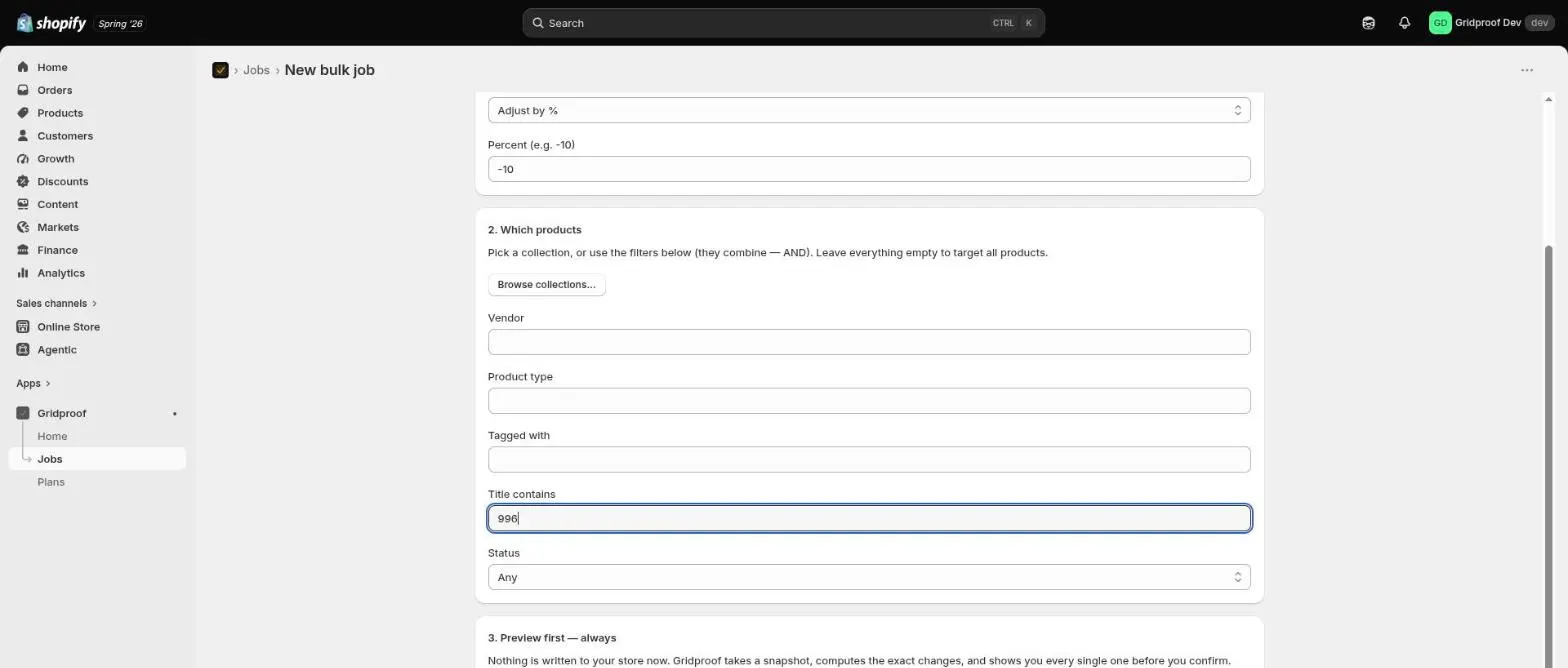
| Filter | Matches |
|---|---|
| Vendor | The product's vendor field. |
| Product type | The product type field. |
| Tagged with | Products carrying that tag. |
| Title contains | A substring of the product title. |
| Status | Active, Draft or Archived — or Any. |
Three behaviours to internalise:
- Filters combine with AND. Filling in two narrows the set. There's no OR — to target two vendors, run two jobs, which also gives you two independent rollback points.
- A chosen collection overrides the filters. While a collection is selected the filter fields below it are ignored completely, and the form says so. If you meant "this collection, but only the drafts", clear the collection and filter instead.
- Everything empty means your whole catalog. Legitimate for a store-wide retag; expensive as an accident. The preview count is your safety net, and it's why the confirmation asks you to type that number rather than click past it.
When a job would change nothing
If every targeted product already holds the value you asked for, Gridproof says the job would change nothing and stops. It doesn't report a successful run over zero items, and it won't let you confirm an empty job.
That outcome is usually informative rather than annoying: it normally means the change was already applied, or the filter matched a set you didn't expect.
What isn't here yet
Being direct about the edges, because a feature list that only lists features isn't much use when you're deciding whether a tool fits:
- Titles, descriptions and SEO fields.
- Inventory quantities.
- Images, and creating or deleting products and variants.
- Scheduled or recurring jobs — every job is run by a person, deliberately, today.
- Saved job templates.
If one of those is the job you need done, a different tool is the honest answer for now.
Next steps
- Your first bulk job, start to finish — the whole workflow in one pass.
- Verification, rollback and the audit trail — what happens after the write.
- Running bulk edits safely — the operating habits.